
CapCut PC Complete Tutorial: These hidden features are 10 times better to use than the mobile version
Jun 15, 2026
CapCut PC version has much more powerful features than the mobile version, but many people don't know how to use the PC version. This article provides a detailed explanation of the complete features, shortcut keys, and efficient editing techniques of the computer version.
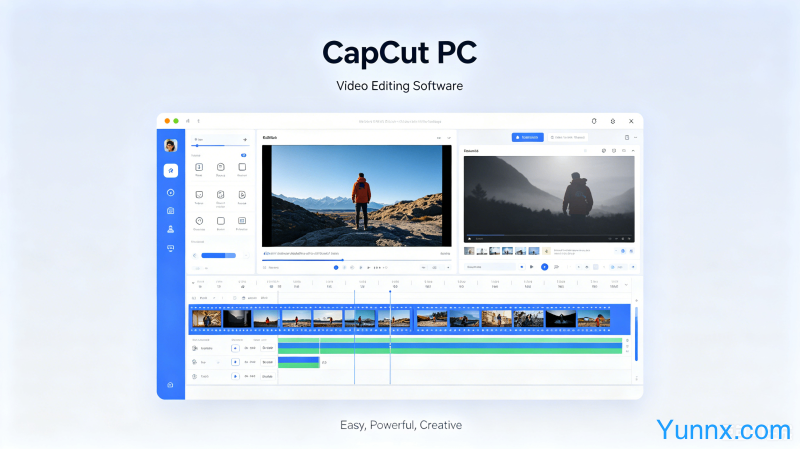
The difference between computer version and mobile version
1. Timeline editing is more convenient: the computer version can edit multiple tracks, while the mobile phone can only edit single tracks.
2. High efficiency of shortcut keys: Shortcuts such as Ctrl+C, V, and Z greatly improve efficiency.
3. Fast export speed: With high computer configuration, rendering and exporting are much faster than on mobile phones.
4. Convenient file management: Directly drag and drop files without importing them back and forth.
5. More advanced features: The computer version has color masks and other functions that are not available on mobile devices.
Essential shortcut keys to learn
1. Space bar: Pause playback, no longer need to click the mouse back and forth.
2. JKL: J moves back, K pauses, L moves forward. Press and hold to quickly preview.
3. Ctrl+Z: undo the previous operation, even if you delete the wrong one.
4. Ctrl+S: Develop the habit of saving at any time to prevent software crashes and file loss.
5. I and O: I mark the entry point, O marks the exit point, and precise cropping is essential.
Efficient Editing Techniques
1. Batch processing: First roughly cut the large structure, then finely cut the details.
2. Music tracking: Mark beat points on the music track and align the image.
3. Subtitle automatic generation: Right click to generate subtitles, manually adjust errors.
4. Template reuse: Save the completed project as a template and apply it directly next time.
5. Proxy editing: Create a proxy for high-resolution materials to make editing smoother.
Suggestions for export settings
1. 1080P 60 frames: Suitable for most platforms, with balanced picture quality and volume.
2. It is recommended to export 4K materials, but 4K playback can be turned off to ensure smooth preview.
3. Choose a high bitrate: The file size is slightly larger but the image quality loss is less.
4. Cover export in PNG format: higher clarity than JPEG.
5. Check the audio level before exporting: Ensure that the sound volume is normal and not loud.
Common problems for beginners
1. Is there no response when importing the video? Check if it is a supported format, MP4 is usually the most stable.
2. Preview lag? Reduce preview resolution or turn off filters for real-time preview.
3. Export failed? Check disk space, exported files are usually large.
4. Don't have the desired filter? CapCut supports importing LUT files to expand color grading.
5. Where is the template? Click the template button in the bottom left corner to enter the template library.
Recommend Apps