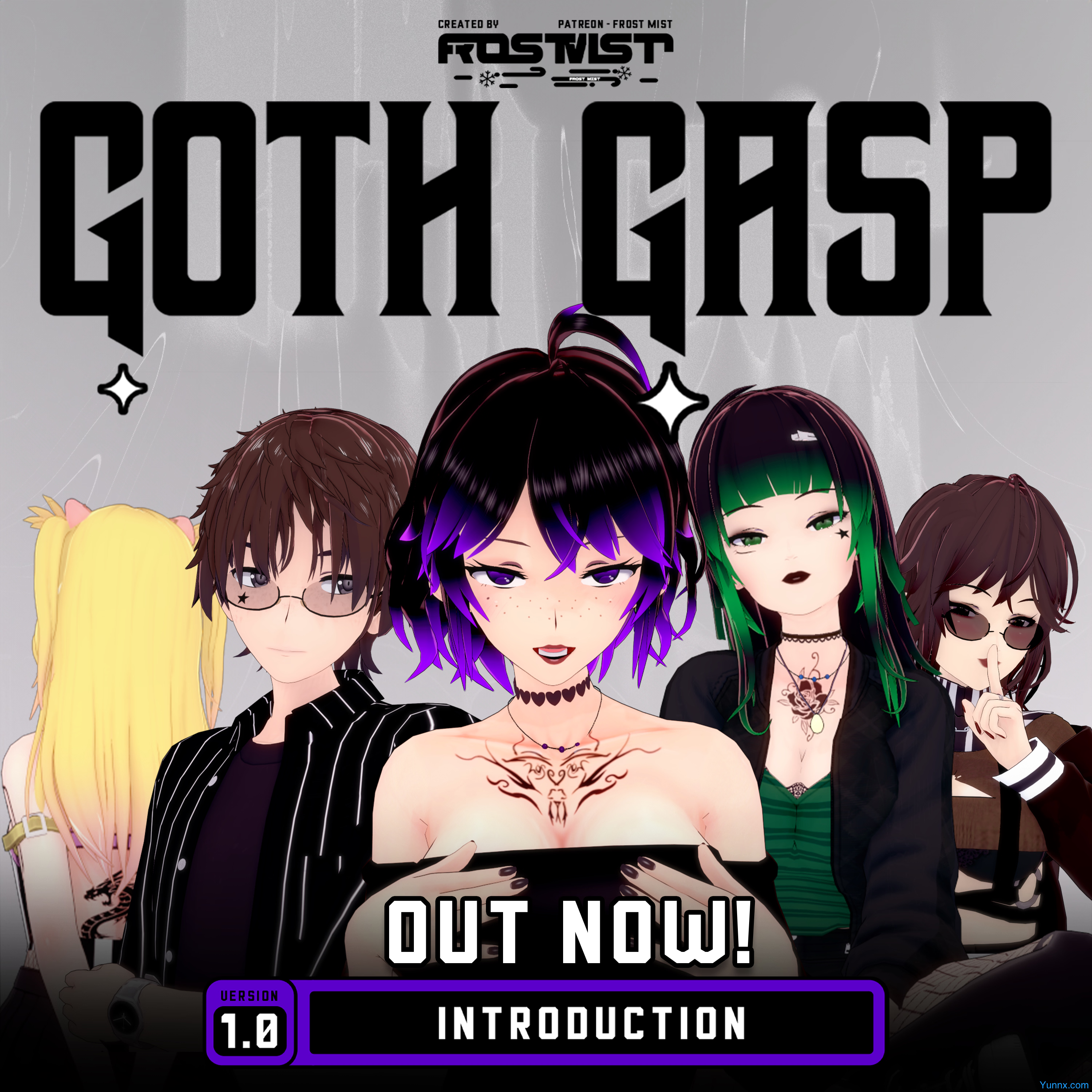
OBS settings commonly used by Twitch bloggers: detailed explanation of game live streaming screen optimization and encoding parameters
Jun 08, 2026
Twitch is the world's largest game live streaming platform, and OBS is the most popular free live streaming software, but the visual quality of many streamers is always unsatisfactory. This article provides a detailed introduction to the optimal encoding parameter settings for OBS in Twitch live streaming, helping you improve the quality of your live stream.
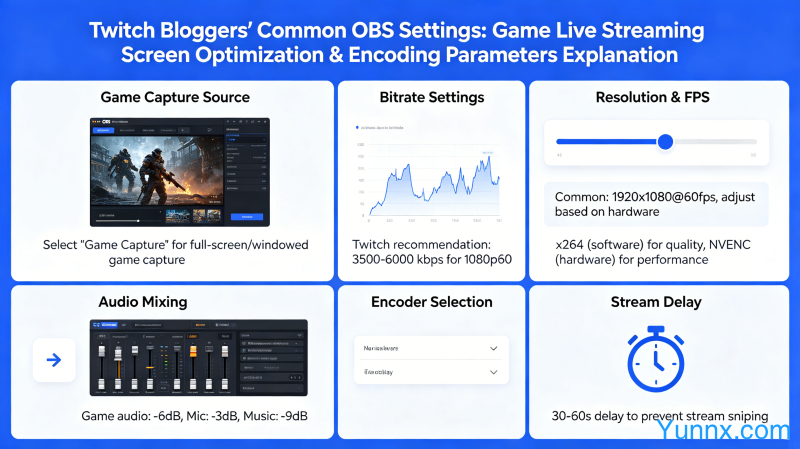
OBS encoder selection
1. It is recommended to use an NVENC encoder (if the graphics card is from the NVIDIA RTX series). The hardware encoding speed is fast, the CPU usage is low, and the image quality is comparable to x264 medium, making it suitable for game hosts to live stream while playing games.
2. If using an AMD graphics card, select the AMD VCE encoder. Similar in performance to NVENC, it is the preferred solution for AMD graphics card users.
3. The x264 encoder is suitable for broadcasters who do not have a dedicated graphics card. Select the 'very fast' or 'fast' preset to avoid using 'ultra fast' (poor image quality) or 'slow' (high CPU usage).
4. Apple M1/M2 chip Mac users can use the built-in VT encoder in macOS, which is efficient and has low CPU usage.
Key parameter settings
1. Resolution. Twitch recommends 1080p60fps, mainstream configuration; If a competitive game requires a high frame rate, you can set 720p60fps to prioritize smoothness.
2. Bitrate setting. 1080p60fps recommends a bitrate of 6000-8000kbps, while 720p60fps recommends a bitrate of 3000-4500kbps. The bitrate is directly related to the image quality, but also needs to consider the network situation of the audience.
3. Choose CBR (constant bit rate) for rate control. Twitch recommends using CBR mode to ensure stable streaming and avoid image fluctuations affecting the audience experience.
4. Set the keyframe interval to 2 seconds. Twitch has requirements for keyframe spacing, set to 2 to be compatible with all viewers.
Scene and source settings
1. Game source capture. Using 'game capture' mode instead of 'window capture' can better capture game graphics and reduce system resource usage.
2. Camera and microphone. The recommended camera speed is 1080p30fps, and using a standalone microphone is much better than using a computer's built-in microphone.
3. Scene switching. By utilizing the scene function of OBS, it is possible to quickly switch between different scenes such as "game only", "game+camera", "rest", etc.
4. Material stacking order. The game is at the bottom layer, the camera covers the top layer, and the subtitles and logo are at the top layer to ensure that important content is not obscured.
Optimization techniques for live streaming image quality
1. Enable 'adaptive bitrate for streaming transmission'. Enable OBS to automatically adjust the bitrate based on network conditions to avoid live streaming lag during network fluctuations.
2. Set up static game scenes. If there is not much change in the game screen, OBS will reduce the bitrate, and slight decorative elements can be added to the game source at this time.
3. Reduce the rendering resolution within the game. If the computer performance is not sufficient, the in-game rendering resolution can be reduced to 720p, and the OBS can be enlarged to 1080p output, with less image quality loss than directly reducing the output resolution.
4. Use two scenarios. When dual anchors collaborate, one scene is responsible for the game screen, and the other is responsible for the two person dialogue interface, without affecting the audience's perception when switching.
Twitch account and live streaming permissions
1. Twitch streamers need to be at least 13 years old to activate live streaming privileges.
2. Twitch has strict censorship of live content, and any content that violates regulations may result in account suspension. Familiarity with Twitch community guidelines is the foundation for long-term live streaming.
3. Increasing the bitrate authorization (Partner or affiliate account) can unlock higher bitrate. The affiliate needs to live stream for at least 50 hours and have an average audience of 3 or more people.
Recommend Apps