Notion is smarter after redesign: AI assistant "Notion AI" nanny level usage guide 2026 version
Jun 05, 2026
Notion has made significant upgrades to its AI assistant in 2026, and now NotionAI can directly help you write copy, summarize meetings, and generate tables. This article provides a detailed introduction to the new features, usage methods, and practical application scenarios of NotionAI.
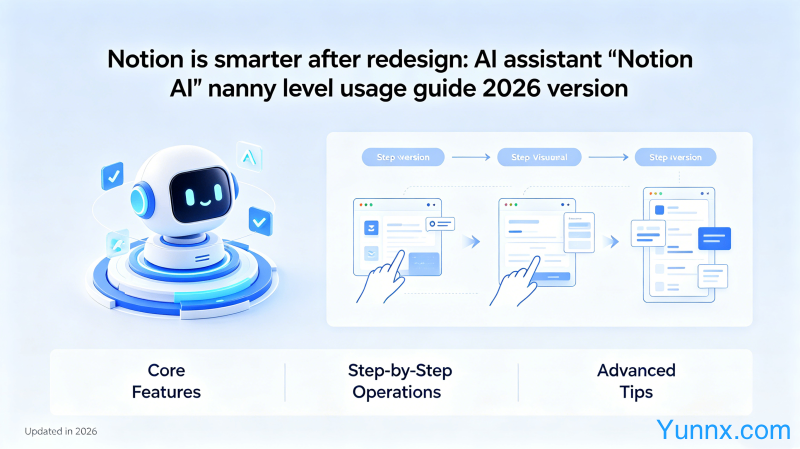
What new features has Notion AI added
1. Intelligent writing assistant. Any page content can be continued, abbreviated, or rewritten. After selecting the text, click on the AI icon or directly enter "/AI" to bring up the writing assistant.
2. Automatically generate tables. As long as you describe the data structure you want, Notion AI can automatically generate a table framework, saving the trouble of manually creating columns.
3. Compilation of meeting minutes. By importing meeting recordings or pasting text records, AI can automatically extract key points, generate to-do lists, and decision lists.
4. Multilingual translation. Supports real-time translation in over 20 languages including Chinese, English, Japanese, and Korean. Selected text can be directly translated into the target language, making it suitable for cross-border team collaboration.
How to enable Notion AI
1. Notion AI is a paid feature that requires a subscription to Notion AI or an upgrade to the Plus plan. The monthly fee is about $10, including a limit of 100 AI usage times.
2. Upgrade method: Click on the avatar in the upper left corner ->"Settings&Members" ->"Plans", select upgrade and complete payment.
3. After activation, the "Ask AI" button will appear in the upper right corner of any page, and clicking it will allow you to ask questions or perform AI operations on the current page content.
Notion AI Practical Tips
1. Quickly draft documents. Enter "/AI write" or "/AI drafts" to describe the direction of the content you want, and manually modify it after the AI generates the initial draft, which is much faster than writing from scratch.
2. Summarize the long article. Paste a long article or report into Notion, select the content and click "Summarize", and the AI will automatically extract key information to generate a summary.
3. Translate collaborative materials. The team members are from different countries. Select the Chinese content and click "Translate to English". The AI will maintain the original meaning while expressing in authentic English.
4. Database automation. Notion AI can help you filter information in the database, such as "finding all tasks in progress and led by Xiao Ming", and the AI will automatically perform filtering operations.
Notion AI usage scenarios
1. Content creation. Run a small red book or official account, enter the topic selection direction, AI will help you generate an outline and first draft, and release them after manual polishing, which will significantly improve the efficiency.
2. Project management. Manage project progress with Notion, have AI generate subtask breakdowns in task descriptions, and develop milestone plans.
3. Customer support. The customer service team uses Notion to record user feedback, allowing AI to summarize high-frequency issues and solutions, forming a knowledge base.
4. Interview records. HR pastes the interview recording into text in Notion, allowing AI to extract the strengths and weaknesses of the candidate and generate an interview evaluation report.
Frequently Asked Questions
What should I do if I use up my AI quota? You can purchase additional credit packages or wait for the credit to reset next month. The team version has more quota options.
Will the content be used by Notion for training AI? No, Notion explicitly states that user content will not be used for training AI models, and privacy is guaranteed.
Does the content generated by AI have copyright? Notion AI generated content belongs to users and can be freely used and commercially published.
Recommend Apps