
How to use CapCut subtitle export and translation function? A complete guide to AI subtitles that even beginners can learn
Jun 02, 2026
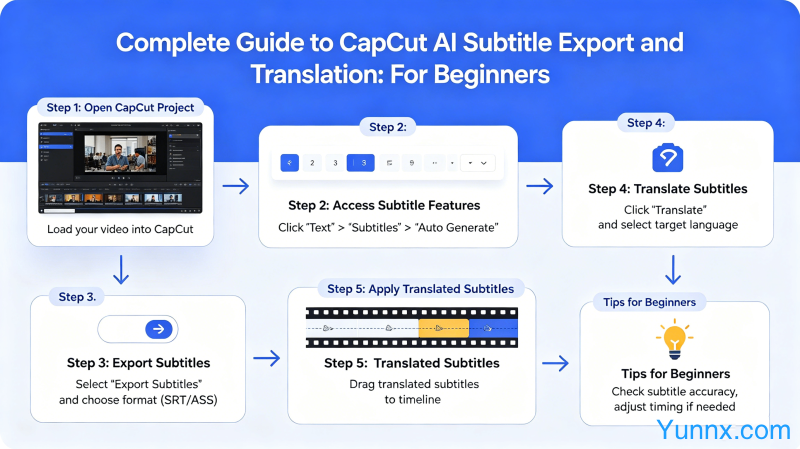
The subtitle function of CapCut is becoming increasingly powerful, automatically generating subtitles, bilingual subtitles in Chinese and English, and one click translation into multiple languages. These functions are very practical for users who create overseas content or learn foreign videos. But many users do not know how to export subtitles, why the exported format cannot be used, and what to do if the translation results are inaccurate. This article provides a detailed explanation of the complete process of generating and exporting CapCut subtitles.
CapCut Subtitle Feature Panorama: Differences between Free and Pro editions
The subtitle function of CapCut is divided into a free version and a Pro version, with a significant difference between the two. Before starting, you need to know what features your version can use.
1. The free version supports automatic subtitle generation (limited to mainstream languages such as English, Spanish, French, etc.), supports basic subtitle style modification, and supports exporting video files with subtitles. But it does not support batch translation or independent subtitle file export such as SRT.
2. CapCut Pro (subscription based, about tens of RMB per month) supports automatic subtitle generation for all languages, supports independent subtitle file export such as SRT/ASS, supports AI translation into more than 30 languages, and supports subtitle style template library.
3. The speed of subtitle generation depends on the video length and network conditions. Generally, generating subtitles for a 1-minute video takes 10-30 seconds, while a 10 minute video may take 3-5 minutes. If an error occurs midway, it is usually a network issue, and you can retry.
4. The functions of CapCut web version and mobile version are basically the same, but the computer version has higher operational efficiency and is suitable for processing long videos. The mobile version excels in convenience, as it can process short videos anytime and anywhere.
5. The CapCut downloaded from the App Store in China and the international version of CapCut are different applications. The former castrates some AI functions, while the latter has more comprehensive functions but requires connection to international networks. It is recommended to use the international version.
How to generate automatic subtitles: detailed steps demonstration
Automatic captioning is one of the most popular features of CapCut, and the entire process does not require manual input of a single word.
1. Open CapCut, import the video you want to process, and click on the "Text" tab. Select 'Auto Captions' or voice to text in the text tool.
2. Choose the language for the video content. CapCut automatically recognizes the language spoken by the characters in the video, but if the video has accents or noisy background music, it may result in recognition errors that need to be manually corrected after generation.
3. After subtitle generation, it will automatically appear on the timeline in the form of text blocks. Each subtitle block corresponds to a sentence in the video and can be individually dragged to adjust the duration.
4. Check the accuracy of subtitles. Automatically generated subtitles are inevitably prone to errors, especially in terms of proper nouns, names, numbers, etc. Checking and correcting errors word by word is a necessary step, otherwise publishing it would appear unprofessional.
5. Adjust the subtitle style. CapCut provides a variety of subtitle style templates, as well as customizable fonts, colors, strokes, shadows, and more. Suggest keeping the subtitle style consistent with the overall style of the video.
How to export video files with subtitles
Exporting is the easiest place to encounter problems, as many users find that subtitles are not displayed or the format is incorrect after exporting.
1. Export the video directly (simplest). After completing the CapCut editing, click on "Export" in the upper right corner, select the resolution and frame rate, and the exported video will come with subtitles. This method is the simplest, but if you want to use subtitles on other platforms, you may need to export subtitle files separately.
2. Ensure that the subtitle track is in the "display" state when exporting. On the timeline, there is an eye icon in front of the subtitle track that must be lit to see the subtitles in the exported video.
3. It is recommended to choose H.264 as the most compatible video encoding format. If uploaded to platforms such as YouTube, choosing H.265 (HEVC) can reduce file size, but some older devices may not be able to play.
4. Export resolution based on the target platform selection. 1080P is enough for Tiktok/Kwai. Station B supports 4K, but 1080P is still the most common option. 4K export speed is slow and the file size is large, so it is unnecessary unless it is a professional requirement.
5. After exporting, check the video in the album/file manager to confirm that the subtitles have been correctly burned into the video before publishing.
How to export independent subtitle files (SRT/ASS format)
If you are doing subtitle translation or need to use subtitle files with other players, you need to export independent subtitle files.
1. Only the CapCut Pro version supports exporting independent subtitle files such as SRT. The free version does not support this feature. If you need this feature, you can only upgrade to Pro.
2. Export method: Select the subtitle track on the timeline, right-click or access the More menu, and find the "Export Subtitles" option. Select the format (SRT or ASS) and confirm the export.
3. SRT format is the most common subtitle format, compatible with almost all players, websites, and editing software. ASS format supports richer style effects, but editing requires professional tools.
4. It is recommended to open the exported subtitle file with a text editor and check to ensure that there are no garbled characters or timeline errors. Sometimes Chinese subtitles may display abnormally in certain players and require adjusting the encoding format.
5. If you want to use subtitle files on YouTube, uploading SRT files directly is more flexible than burning them into the video, and YouTube will automatically match the subtitle display.
How to use AI translation function: practical skills for subtitle translation
The built-in AI translation function of CapCut can translate subtitles into multiple languages with just one click, making it a magical tool for those who create overseas content.
1. After generating subtitles, select the subtitle track and click the "Translate" button. Select the target language (Chinese to English, English to Japanese, Japanese to Korean, etc.), and AI will automatically translate the entire subtitle.
2. The translation results need to be checked. AI often makes mistakes when translating proprietary terms, names, and colloquial expressions. Suggest checking sentence by sentence, especially for parts involving brand names, numbers, and references to the original text.
3. It is possible to retain both the original text and the translation simultaneously, and generate bilingual subtitles. The method is to select the subtitle block after translation, find the "Bilingual" option in the style settings, and check it to display both languages simultaneously.
4. If you want to make a sea video with the translated subtitles, it is recommended to first translate them into English and then translate them into other languages. This has a higher accuracy than direct translation.
5. The translation function has a daily limit, and free version users have a limited daily translation limit. High frequency use may require waiting or upgrading to Pro.
Summary
The subtitle function of CapCut is already very mature, from automatic generation to translation and export, the entire process can be completed on mobile phones. If you are doing overseas content, subtitle translation function can help you achieve twice the result with half the effort; If you are a learner, using the subtitle export function can efficiently extract the core content of the video. The key is to check and correct the generated content, confirm the format before exporting, and ensure that the target platform has different requirements in order to tailor the subtitles.
Recommend Apps