Is Chrome browser unable to sync? Reasons for Chrome sync failure and troubleshooting tutorial
May 29, 2026
Chrome browser is the most widely used browser worldwide, but domestic users often encounter the problem of Chrome not being able to sync. How to solve Chrome synchronization failure? How to backup Chrome bookmarks and passwords? This article provides a detailed solution to Chrome synchronization issues.
What is Chrome Sync feature
1. The Chrome sync feature can synchronize your bookmarks, browsing history, passwords, extensions, and other data to Google Cloud. After changing devices or reinstalling the system, log in to your Google account to recover all data.
2. For users who need to use multiple devices both domestically and overseas, Chrome Sync can achieve unified bookmark management without the need for manual export and import every time.
Chrome synchronization relies on Google services, and there are obstacles in connecting directly to Google servers on domestic networks, which is the fundamental reason for synchronization failure.
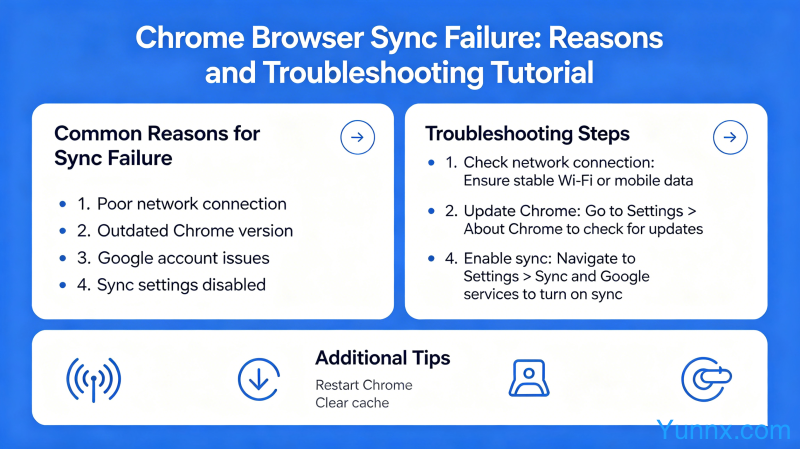
Common reasons for Chrome synchronization failure
1. Network issues. This is the most common reason for Chrome synchronization failure. Domestic network access to Google servers is restricted, resulting in the inability to establish a connection with Google Cloud. Solution: Use a stable proxy tool and set the proxy to global mode.
2. Google account is blocked. Sometimes even if a proxy is hung up, the Google account itself is recognized as an abnormal login. Solution: First, log in to the Google account web version in the proxy environment and complete the human-machine verification.
3. Chrome version is outdated. The old version of Chrome may have a bug with synchronization function. Solution: Update to the latest version of Chrome. Domestic users can obtain the installation package from the Chrome official website mirror site or third-party download sites.
Chrome bookmark export backup method
1. Manually export bookmarks. Enter in the Chrome address bar chrome://bookmarks/ Open the bookmark manager. Click on "Organize" ->"Export Bookmarks" in the upper right corner, select the save location to export as an HTML file.
2. Import bookmarks. Click on "Import and Export" ->"Import" in the bookmark manager, and select the previously exported HTML file. The imported bookmarks will be added to the end of the bookmark bar.
3. Xmarks extension program. Installing the Xmarks plugin can automatically backup bookmarks to the cloud and support cross browser synchronization (compatible with Chrome, Firefox, and IE).
Chrome Password Management
1. Chrome has a built-in password manager. Turn on "Save Password" and "Auto Login" in Chrome settings. Chrome will save the password you entered when accessing the website and automatically fill it in the next time you visit.
2. Password security recommendations. Chrome will prompt for password strength and issue warnings for weak passwords and leaked passwords. It is recommended to set independent strong passwords for each website, as Chrome's password generator can help create random strong passwords.
3. Password export. Chrome does not allow direct export of password plaintext, but it can be done through chrome://settings/passwords View saved password (requires verification of Windows account). If you need to export, it is recommended to use a third-party password manager such as Bitwarden.
Chrome Extension Sync
1. Chrome extensions synchronize with Google accounts by default. But some extensions installed from outside the Chrome Web Store may not sync.
2. Extended program backup. In developer mode, extensions can be packaged as CRX file backups. in chrome://extensions/ On the page, click on 'Package Extension' to export.
3. Recommended extensions: AdGuard (ad blocking), Tampermonkey (script management), JSON Viewer (JSON formatting), Video Downloader (video downloading), etc.
Chrome usage tips
1. Quick search. You can directly search by entering "keywords" or "website name" in the address bar, without having to first go to the search engine page and enter keywords.
2. Multi tab management. Ctrl+T to create a new tag, Ctrl+W to close a tag, Ctrl+Tab to switch tags, proficient use of shortcut keys can greatly improve efficiency.
3. Reading mode. Installing the 'Reader Mode' or 'Clearly' extension can remove ads and irrelevant content while reading articles, providing a clean reading interface.
Summary
The core issue with Chrome synchronization is network access. After resolving the proxy issue, the synchronization function can be used normally. Regularly manually exporting bookmarks for backup is an additional layer of protection, avoiding the uncertainty caused by relying on synchronization services.
Recommend Apps