
How to create a channel on Telegram? Complete guide to Telegram privacy settings and group management skills
May 28, 2026
Telegram is one of the most widely used encrypted communication apps in the world, with powerful channel and group functions. Many users do not know how to create channels on Telegram and how to configure Telegram privacy settings for the most secure use? This article provides a detailed introduction to Telegram channel creation and privacy protection settings techniques.
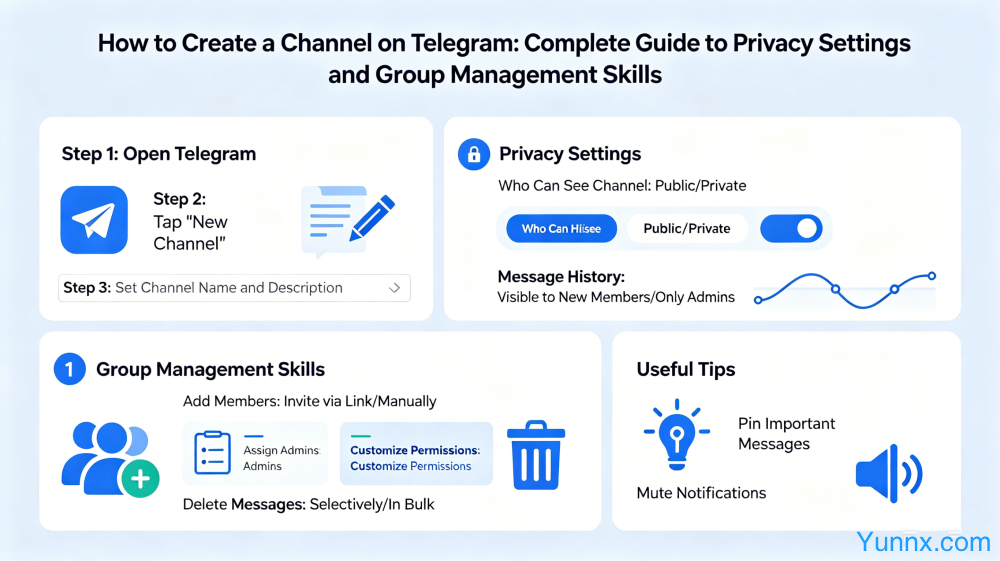
Telegram channel creation steps
1. Create a channel entrance. Click on the menu in the upper left corner ->New Channel ->Fill in the channel name and description ->Select the channel type (public/private).
2. Public channels will have public links (such as t.me/channel name) that anyone can search for and join; Private channels require an invitation link to join.
3. After creation, you can add discussion groups in the channel settings to allow channel members to communicate in the discussion groups.
Telegram Group Management Tips
1. Group permission management. In group settings, you can set speaking permissions, media sending permissions, invitation permissions, etc. to avoid screen flooding and advertisements within the group.
2. Set up an administrator. Add trusted members as administrators to assist in managing group order. Administrators can delete messages, ban members, and approve group requests.
3. Group messages can be pinned and burned immediately after reading. Important notifications can be placed at the top; After opening and burning, the message will be automatically deleted after being read.
Telegram Privacy Settings
1. Last online time and online status. In "Settings" → "Privacy and Security" → "Last online time and online", you can set it to be unmanned or only visible to contacts.
2. Personal profile picture and phone number privacy. Set who can see your profile picture and phone number. It is recommended to set it as "contacts" or "no one".
3. Link for forwarding messages. Turning off 'displaying links when forwarding messages' can prevent others from tracking your account through forwarded messages.
Telegram Security Settings
1. Two step verification. Enable two factor authentication (set password), even if your phone number is copied, you cannot log in to your account. Enable it in "Settings" → "Privacy and Security" → "Two Step Verification".
2. Active session management. Regularly check the list of logged in devices in 'Devices' and exit sessions with unfamiliar devices.
3. Password setting. Set account password in "Privacy and Security". Forgetting the password will result in the account being unrecoverable. Please save it carefully.
Telegram robot usage
1. Search for robots. Search for the robot name in the search box (such as @ threaderbot, @ gamee, etc.) to add and use it.
2. Create your own robot. @ BotFather allows you to create custom robots, set robot names and commands, receive subscriber messages, and automatically reply.
3. Privacy settings for robots. You can set the robot to only respond when @ is in the group to prevent the robot from being abused.
Frequently Asked Questions
What should I do if my Telegram channel is banned. Channel violations of publishing sensitive content may result in being banned. Avoid publishing political, pornographic, and fraudulent content.
2. Can't the group speak? It may be banned or removed from the group. Contact the group administrator to lift the ban.
How to save expired files. Telegram files are saved permanently by default, but if automatic cleaning is set, important files need to be modified or manually saved in the chat settings.
Summary
Telegram is a powerful communication tool with flexible and diverse channel and group management. Security settings are of utmost importance when using Telegram. It is recommended to enable two factor authentication, regularly check login devices, and protect account passwords.
Recommend Apps