How to enable ChatGPT voice conversation? Detailed explanation and usage tips for ChatGPT's advanced voice mode function
May 20, 2026
How to enable ChatGPT voice conversation? This article explains in detail the differences between standard voice mode and advanced voice mode, the steps to enable it, core functions such as emotion perception and seamless switching between multiple languages, as well as solutions to common problems.
Standard voice mode vs. Advanced voice mode: core differences
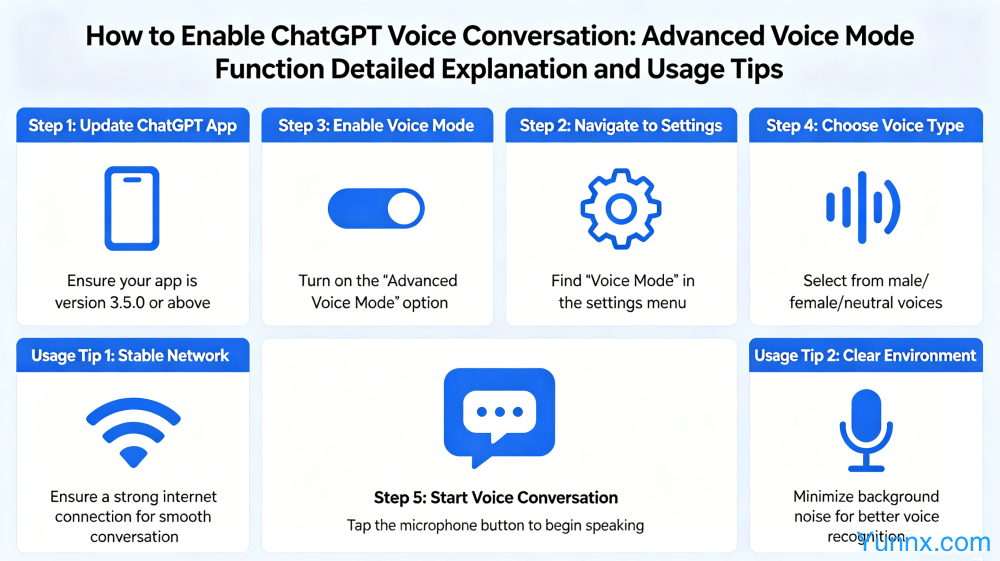
Standard Voice Mode: Available in the free version. Click the microphone icon on the left side of the input box to use voice instead of typing. The system will transcribe the voice into text and pass it to ChatGPT for processing, and finally reply in text form. This is essentially "voice input" rather than true voice conversation.
Advanced Voice Mode: Based on the GPT-4o model, it supports real-time voice conversation. It can recognize users' emotions, tone, and intonation, and respond with corresponding emotions in its replies. Outputting in pure voice form, there's no need for text transcription. Initially, it was only available to Plus and Team users, but in 2026, a certain usage quota was opened to free users.
The first step to enable voice function: update the APP and authorize the microphone
Step 1: Head to the app store (App Store for iOS, Google Play or Huawei App Market for Android) to update ChatGPT to the latest version.
Step 2: After installing and logging into the ChatGPT account, enter the main interface. Find the earphone or microphone icon on the left side of the input box. Click it, and the system will prompt for microphone permission. Click "Allow". This is a prerequisite for the voice function to work properly.
Usage of Standard Voice Mode
Click the microphone icon on the left side of the input box to enter the recording state, where you can see the sound wave animation pulsating in the input box. Speak your question into the phone, then click the microphone icon again or wait for the voice input to automatically end. The system will transcribe the voice into text and send it. Soon, ChatGPT's text reply will appear on the screen. This is suitable for scenarios where typing is inconvenient but the question is relatively short, such as quickly checking information on the commute. It should be noted that the reply in standard mode will still be presented in text.
Usage and four major features of advanced voice mode
Access method: In the ChatGPT APP, if the account has usage permissions, a circular speech bubble icon (with a blue or orange pulse animation) will appear above the input box. Clicking on it will enter the advanced voice conversation mode.
Feature 1: Seamless multilingual switching, allowing the use of multiple languages such as Chinese, English, and Japanese in the same conversation, with ChatGPT capable of naturally understanding and switching between them.
Feature 2: Emotion Perception Ability. It can adjust the tone, rhythm, and emotional expression of the AI based on the content and tone of the conversation. When expressing troubles in a downcast tone, the AI will respond in a gentle tone.
Feature 3: Real-time information inquiry. It can be combined with networking functions to inquire about weather, news, stock market, etc. in real time, making voice conversation more enriched and practical.
Feature 4: Memory function, which can remember personal information and context shared during the same conversation, and naturally recall it in subsequent conversations without the need for repeated explanation.
Common Usage Issues and Solutions
Question 1: Is there a queue or connection issue with the advanced voice mode? Answer: This may occur when the server is under high load. It is recommended to use during off-peak hours or try again later.
Question 2: Is there a high delay in voice response? Answer: The advanced voice mode has high requirements for network stability, and it is recommended to use it in a Wi-Fi environment for the best experience.
Question 3: Is voice data used for training? Answer: Turning off the "Chat history and training" option (Settings - Privacy & Safety) can effectively reduce the possibility of data being used for training.
Question 4: Is the speech recognition in multi-person dialogue scenarios not perfect? Answer: The current version does not support simultaneous recognition of multiple speakers, so it is not applicable to multi-person dialogue scenarios for the time being.
Advanced Usage Tips
Tip 1: Before entering voice conversation, set the AI role and style in text mode, for example, "Next, talk to me in Chinese, using a light and humorous tone." After entering voice mode, the AI will maintain a consistent style.
Tip 2: Support interruptions and interjections, but it is recommended to interrupt after the AI has finished expressing a complete thought, so that the AI can better understand and process new inputs.
Tip 3: Adjusting the "Response Length" to "Short" mode in the voice settings can reduce the duration of each response and enhance conversation efficiency.
Tip 4: Combine the Custom Instructions feature to preset personal information and usage preferences, so that the AI can directly access them every time a voice conversation is initiated, eliminating the need to explain them again each time.
Recommend Apps