

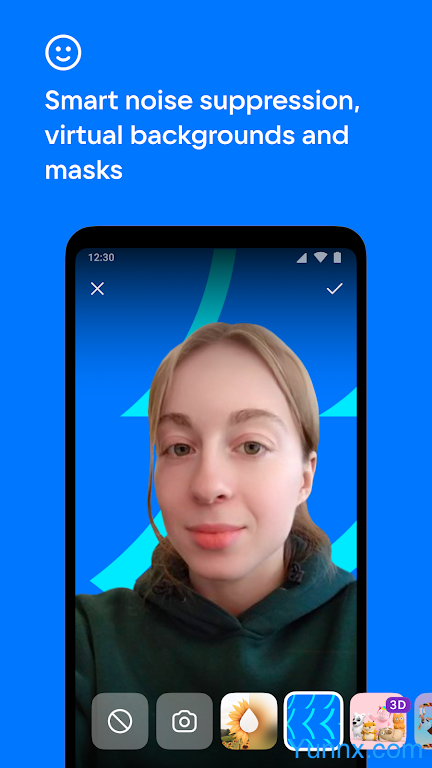
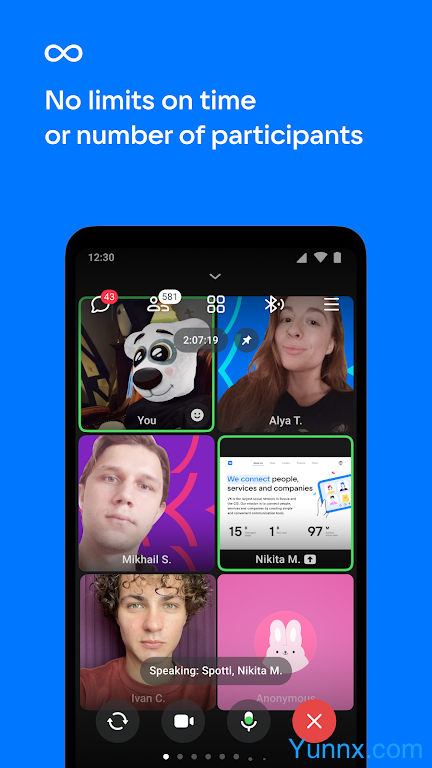
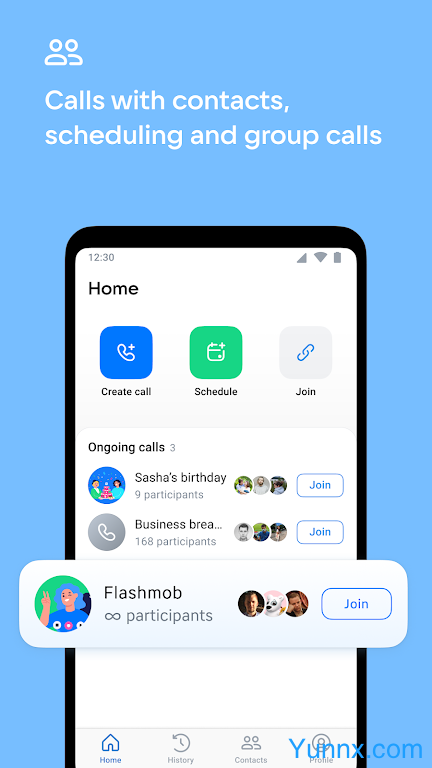
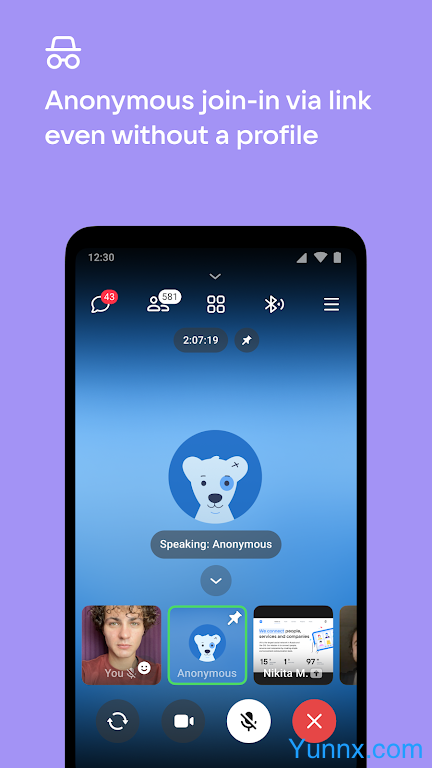
VK Calls is an independent video conferencing and calling application launched by VK, focusing on high-quality group calls and online meetings. It supports unlimited duration, unlimited number of participants (theoretically), and provides professional features such as 4K screen sharing, intelligent noise reduction, and virtual background.
What is VK Calls
VK Calls (formerly VK) is a free video conferencing and calling platform developed by the Russian social giant VK. It was launched in 2021 and released as an independent mobile application in December 2025, focusing on providing unlimited high-quality group communication services VK Calls. It can be used in various scenarios such as business meetings, online teaching, webinars, friend gatherings, etc. It is completely free and has no hidden fees VK Calls.
Core positioning and advantages
Focused on meetings: Unlike VK Messenger's lightweight chat positioning, VK Calls is designed specifically for group calls and meetings
Unrestricted: No time limit, no upper limit on the number of attendees (officially stated to support 2048 people simultaneously turning on the camera)
Multi platform: Supports mobile phones, tablets, computers, and web platforms, seamlessly switching across devices
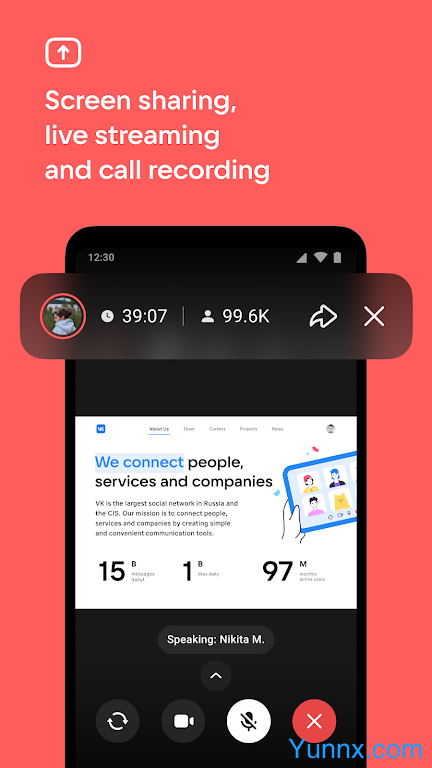
Professional features: Provides enterprise level functions such as 4K screen sharing, intelligent noise reduction, virtual background, conference recording, etc
Anonymous participation: Allow users without VK accounts to join meetings through links to protect privacy
Usage (Quick Start)
1. Initiate a one-on-one call
Through the VK main application: Open Chat → Click on the "Phone" icon (audio) or "Camera" icon (video)
Through the VK Calls app: Open the app → Select contacts → Click on the "Call" button
2. Create a group meeting (recommended)
Open the VK Calls app or web version
Click on 'Create Call' → select 'Create by Link'
Set meeting name, date and time (optional), and allow anonymous participation
Copy the meeting link and send it to the attendees (via any communication tool)
At the beginning of the meeting, click on the link to join
3. Meeting management skills
Host permissions: can open waiting room, mute all, remove attendees, and transfer host permissions
Content sharing: Click on "Share Screen" to select the entire screen or a specific application window
Record meeting: Click the "Record" button to start recording, and automatically save to VK cloud drive after completion
Interactive function: Participants can click "raise their hand" to request to speak, and the host will approve before speaking
Common problems and precautions
Practical usage tips
Network optimization:
When the network is poor, it is recommended to turn off the video and only keep the audio
The host can lower the video quality in the settings to improve overall fluency
Privacy Protection:
It is recommended to set a password for private meetings or only allow invited users to join
Avoid sharing sensitive information on public networks
Cross border use:
Some regions may require VPN to access VK services
Ensure network stability for optimal call quality
frequently asked questions
Why can't I create a meeting?
Check if VK account has been logged in
Ensure that the application has been updated to the latest version
Unstable network connection may lead to creation failure
How to invite users without VK accounts?
Check the 'Allow anonymous participation' option when creating a meeting
Copy the meeting link and send it to the other party, who can join directly through their browser
Where are the meeting recording files saved?
The recorded file is automatically saved to VK cloud drive, which can be found in "My Files"
Support downloading to local devices or sharing with others